Enregistrer un autre appareil

Si vous vous êtes déjà inscrit une fois à LGT SmartBanking, vous trouverez ici des informations sur la manière d'enregistrer un autre appareil. Cela peut être pertinent pour vous dans les cas suivants :

  • Vous avez un nouveau mobile
  • Vous voulez utiliser LGT SmartBanking sur deux téléphones (p. ex. professionnel et privé)
  • Vous voulez installer LGT SmartBanking sur l'appareil d'un membre de votre famille.
     

Étape 1

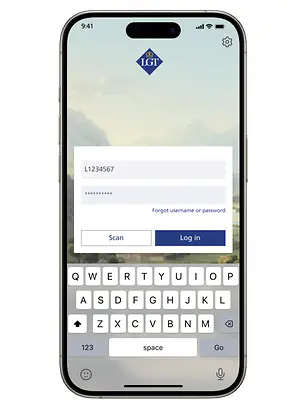
The smartphone screen shows the home page of the LGT Smart Banking app. The screen displays the input fields for entering personal login details.
Veuillez saisir vos données de connexion dans l'application.

Étape 2

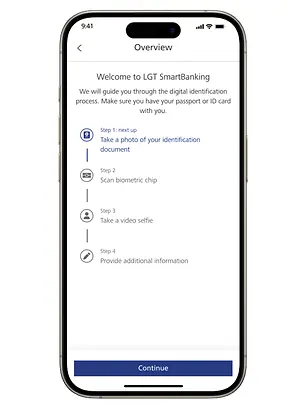
The smartphone screen shows the LGT Smart Banking app with an overview of the four steps to register a second device. The "Continue" button is at the bottom, and the steps are explained on the following slides.
Voici les quatre étapes simples nécessaires à l'enregistrement de votre deuxième appareil.

Étape 3

The smartphone screen shows the LGT Smart Banking app. The "Terms and Conditions" page is displayed, and it must be accepted by clicking the "Accept and Continue" button at the bottom of the screen in order to proceed.
Veuillez confirmer les conditions d'utilisation avant de commencer.

Étape 4

The smartphone screen shows the LGT Smart Banking app with the digital identification page, featuring illustrations of a passport and ID card. Below, there are two buttons: "Biometric Passport" and "Biometric ID card" to choose from.
Choisissez si vous voulez faire l'enregistrement avec votre passeport biométrique ou votre carte d'identité.

Étape 5

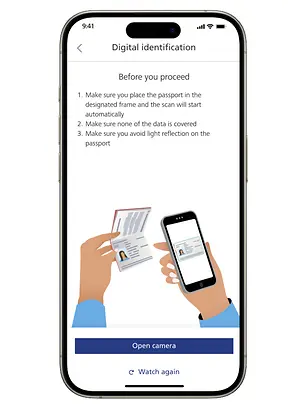
The smartphone screen shows the LGT Smart Banking app with a digital identification page, highlighting three scan tips: 1) Passport in frame, 2) No data covered, 3) Avoid reflections. Buttons below: "Open camera" and "Watch again."
Pour cet exemple, nous partons du principe que vous effectuez l'enregistrement avec votre passeport. Ensuite, vous ouvrez votre appareil photo et prenez une photo de votre passeport.

Étape 6

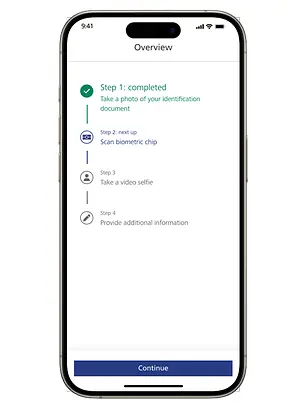
The smartphone screen shows the LGT Smart Banking app. The four steps in the process are displayed again in a vertical timeline. The first step has now been completed. At the bottom of the screen, there is the button "Continue".
Après la photo, la première étape est terminée et nous passons à la deuxième étape, le scannage de la puce biométrique avec votre téléphone portable.

Étape 7

The smartphone screen shows the LGT Smart Banking app with another step of identification. Three points are listed: 1) Place the phone on the passport, 2) If the process doesn’t start, move the phone over the passport, 3) Wait for the process to finish.
Vous verrez alors dans l'application une courte vidéo d'instructions, après laquelle vous serez invité à scanner la puce, comme vous pouvez le voir sur l'illustration.

Étape 8

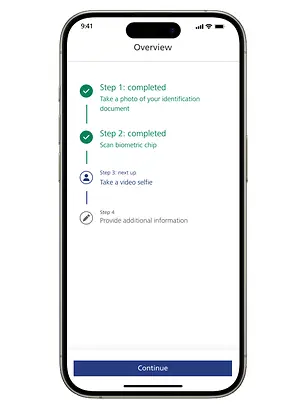
The smartphone screen shows the LGT Smart Banking app. The four steps in the process are displayed again in a vertical timeline. The first and second step have now been completed. At the bottom of the screen, there is the button "Continue"
Deux des quatre étapes sont donc terminées et nous passons à l'étape suivante, un selfie vidéo pour vérifier que c'est bien vous, le détenteur du passeport, qui effectuez cette démarche.

Étape 9

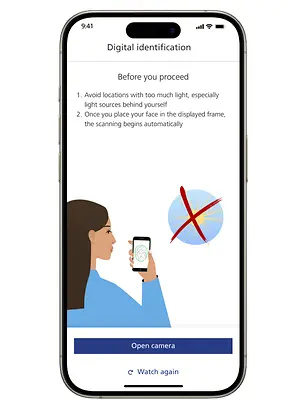
The smartphone screen shows the LGT Smart Banking app with an identification step. Two points: 1) Avoid bright locations. 2) Scanning starts automatically once your face is in the frame. The buttons 'Continue' and 'Watch again' are at the bottom.
Ici aussi, vous recevez une courte vidéo d'instructions avant de réaliser le selfie vidéo. Pendant le selfie vidéo, différentes couleurs s'allument sur votre écran. Il s'agit d'une fonction de sécurité qui permet de s'assurer que la personne sur la vidéo est bien réelle.

Étape 10

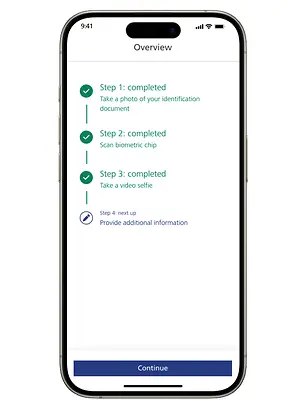
The smartphone screen shows the LGT Smart Banking app. The four steps in the process are displayed again in a vertical timeline. The first, second and third step have now been completed. At the bottom of the screen, there is the button "Continue".
Après le selfie vidéo, vous avez déjà effectué trois des quatre étapes. Il ne vous reste plus qu'à saisir quelques dernières informations.

Étape 11

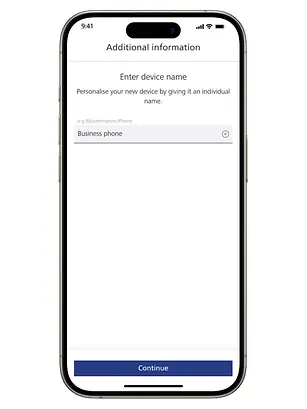
The smartphone screen shows the LGT Smart Banking app. The "Additional information" page is open, with an input field for the device name. At the bottom of the screen, there is a blue "Continue" button.
Donnez maintenant à votre appareil nouvellement enregistré un nom qui vous permettra de le distinguer des autres appareils que vous souhaitez peut-être utiliser pour LGT SmartBanking.

Étape 12

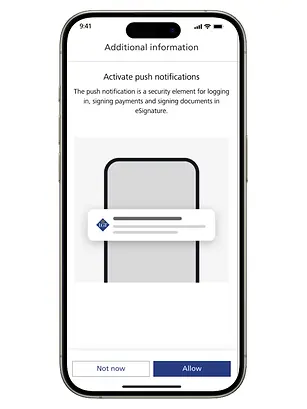
The smartphone screen shows the LGT Smart Banking app. The "Additional information" page is open, and the step where push notifications can be set up is displayed. At the bottom of the screen, the buttons "Not now" and "Allow" are visible.
Activez encore les notifications push. C'est une étape importante pour pouvoir passer des ordres de paiement ou de trading dans l'application par exemple.

Étape 13

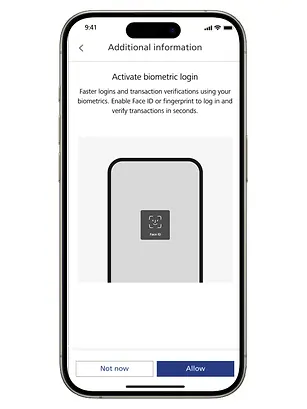
The smartphone screen shows the LGT Smart Banking app. The 'Additional information' page is open, showing the step where the biometric login can be activated. At the bottom of the screen, the buttons "Not now" and "Allow" are visible.
Activez maintenant également le login biométrique de votre téléphone portable afin de pouvoir vous connecter encore plus facilement à l'avenir.

Étape 14

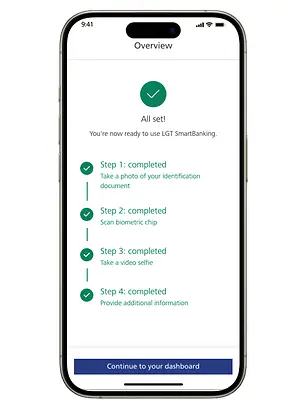
The smartphone screen shows the LGT Smart Banking app. The four steps in the process are displayed again in a vertical timeline. All steps have now been completed. At the bottom of the screen, there is the button "Continue to your dashboard".
Félicitations, vous avez terminé les quatre étapes de l'enregistrement !

Étape 15

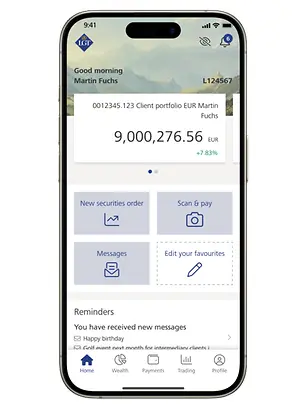
The smartphone screen shows the LGT Smart Banking app. The dashboard is open.
Dans une dernière étape, votre tableau de bord de LGT SmartBanking se charge sur votre nouvel appareil.

Vous avez besoin de soutien ?

Contactez-nous si vous n'avez pas trouvé de réponse à votre question dans l'aide en ligne ou si quelque chose ne fonctionne pas comme prévu. Notre LGT SmartBanking Support est à votre disposition les jours ouvrables de 8h à 18h et se fera un plaisir de vous aider.  

Retour à la page d’aperçu de l’aide en ligne

Sur notre page d’aide en ligne SmartBanking, vous trouverez une assistance complète pour toutes les fonctions bancaires. En plus des questions fréquemment posées, nous fournissons des informations détaillées sur des sujets tels que la gestion de patrimoine, les paiements et les ordres de bourse.