
Corporate Action as a self-service How to set up an instruction?
With LGT’s new Corporate Action self-service platform, you can manage Corporate Actions independently, efficiently, and transparently. The intuitive interface allows you to make decisions for various event types directly and securely.
The following Corporate Action types are covered as self-service:
- Dividend choice
- Public Offer
- Exercise Options
- Capital Increase (tradable rights)
- Capital Increase (untradable rights)
- Dividend Reinvestment
- Redemption prior to Maturity
- Conversion Bond-Share
- Dividend Stock
The structure of the Corporate Action screen is similar for all event types. We use a dividend choice Corporate Action as an example:
Step 1: Accessing the feature
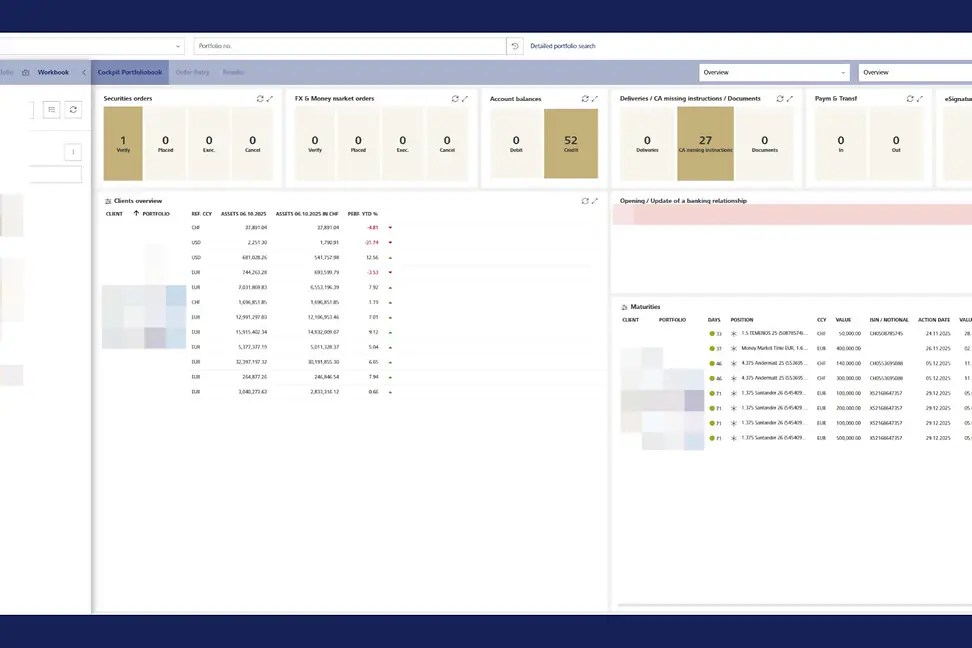
Open the portfolio book or the desired portfolio and navigate to “CA missing instructions“.

Step 2: Selecting the event
In the overview, select one of the listed Corporate Actions e.g. Dividend Choice, Public Offer, Exercise Options, Capital Increase, Dividend Reinvestment, Redemption prior to Maturity, Conversion Bond-Share, Dividend Stock. Click on the corresponding action to open the details.

Step 3: Reviewing event details
The header displays relevant asset information and the deadline (“Instruction Until“). After the deadline, instructions can no longer be submitted. The “Summary“ field provides a brief description of the corporate action. For further details, refer to the client advice.

Step 4: Default instruction
The LGT default instruction is displayed (e.g., “Take cash dividend“ for Dividend Choice). This instruction applies unless another option has been selected.

Step 5: Decision
Choose the instruction that you want to apply to one or more client portfolios.

Further notes: For “Dividend Choice“, “Public Offer“, “Dividend Reinvestment“ and “Redemption prior to Maturity“ the instruction applies to the client’s entire position. Instructions for parts of the position are not supported. For all other supported “Event Types“ partial instructions are possible.
- Public Offer
Details can be found directly in the client advice. - Exercise Options
The trading function allows you to sell options that have not been exercised. - Capital Increase (tradable rights)
After applying a decision, the trading function opens to sell remaining rights. If the client wishes to buy further rights, he has the possibility to do so via the “Buy“ button. ATTENTION: Newly bought rights will only be visible after the final settlement. - Capital Increase (untradable rights)
No trading function is available, as rights are not tradable. - Dividend Stock
After applying a decision, the trading function opens to sell remaining rights. If the client wishes to buy further rights he has to possibility to do so via the “Buy“ button. ATTENTION: Newly bought rights will only be visible after the final settlement
Step 6: Select Portfolios
Select the desired portfolios. If only one eligible client exists, this client is preselected by default.

Tip: Use selection options such as “Select unconfirmed“ or “Select all“ to instruct multiple clients at once.

Step 7: Applying the decision
Click “Apply decision“ to submit the instruction. The decision is immediately visible and valid.

Important Note: Only one instruction is possible per form. If you set the wrong instruction or want to instruct other clients, you must close the form and reopen it by clicking “update instructions“ on the overview “CA missing instruction“.
Step 8: Completion
Close the form by clicking on the “Close“ button to finish the process.

Tip: To see your actual instructions, close the form and refresh the overview.

Further Remarks
Instructions can be changed any time within the deadline (“Update Instruction“).
Current standing instructions are shown in the overview under “Instruction Status“ with “Confirmed by standing instruction“.
Some corporate actions might be announced on short notice or require special treatment by the bank. Further details will be communicated to your relationship manager separately, who will then contact you to obtain your instructions if they cannot be captured via LGT SmartBanking Pro.
We strongly recommend activating e-mail notifications for new Corporate Actions. For more details on how to set up this function, please refer to E-mail notification.
Do you need assistance?
Contact us if you didn't find the answer to your question in the online help or something isn't working as it should.